ProjectionLab v5 Transition Guide
We’re excited to release ProjectionLab v5 and hear what you think.
Most of the work in this release focused on improving ProjectionLab’s backend and infrastructure. It also includes a complete front-end overhaul with clearer navigation, account-level history, and new charts.
This guide covers what to review in your plans after upgrading to v5.
What to review
1. Confirm your Main Plan
ProjectionLab v5 requires a Main Plan.
To confirm or change yours, open the plan selector at the bottom of the left sidebar and select All plans. Open the three-dot menu for the plan you want, then select Set as main plan.
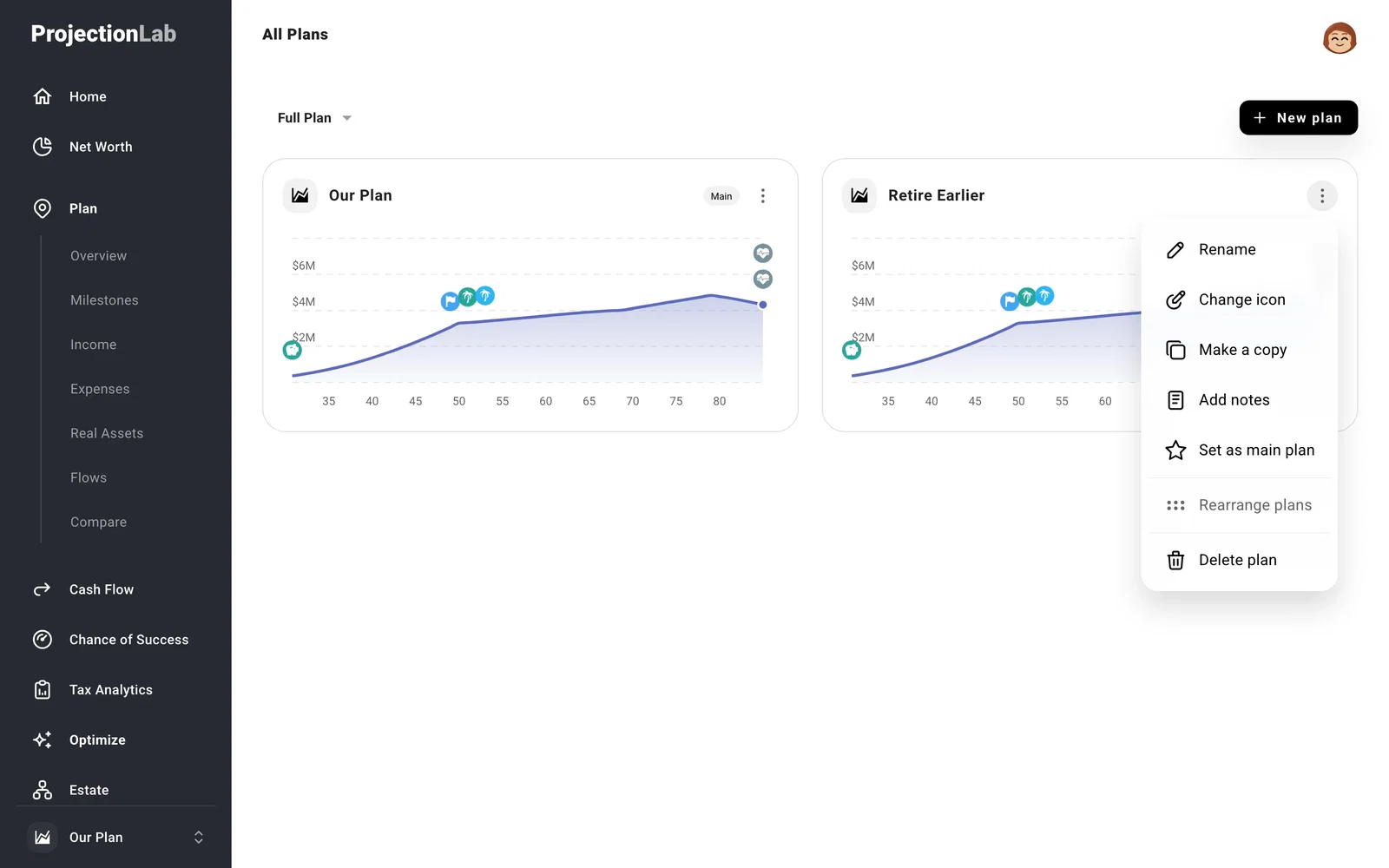
Review the confirmation before proceeding, as it lists any shared household or account details that will change.
Fixed Date plans cannot be your Main Plan. If you previously used only Fixed Date plans, you may see a new plan named My Plan.
2. Existing Fixed Date plans
Starting Conditions no longer has its own page. To review or edit the starting accounts, assets, and debts for an existing Fixed Date plan, select that plan and edit Net Worth.
To update current balances or account history, select your Main Plan or another plan that starts now and uses today’s Net Worth, then edit Net Worth.
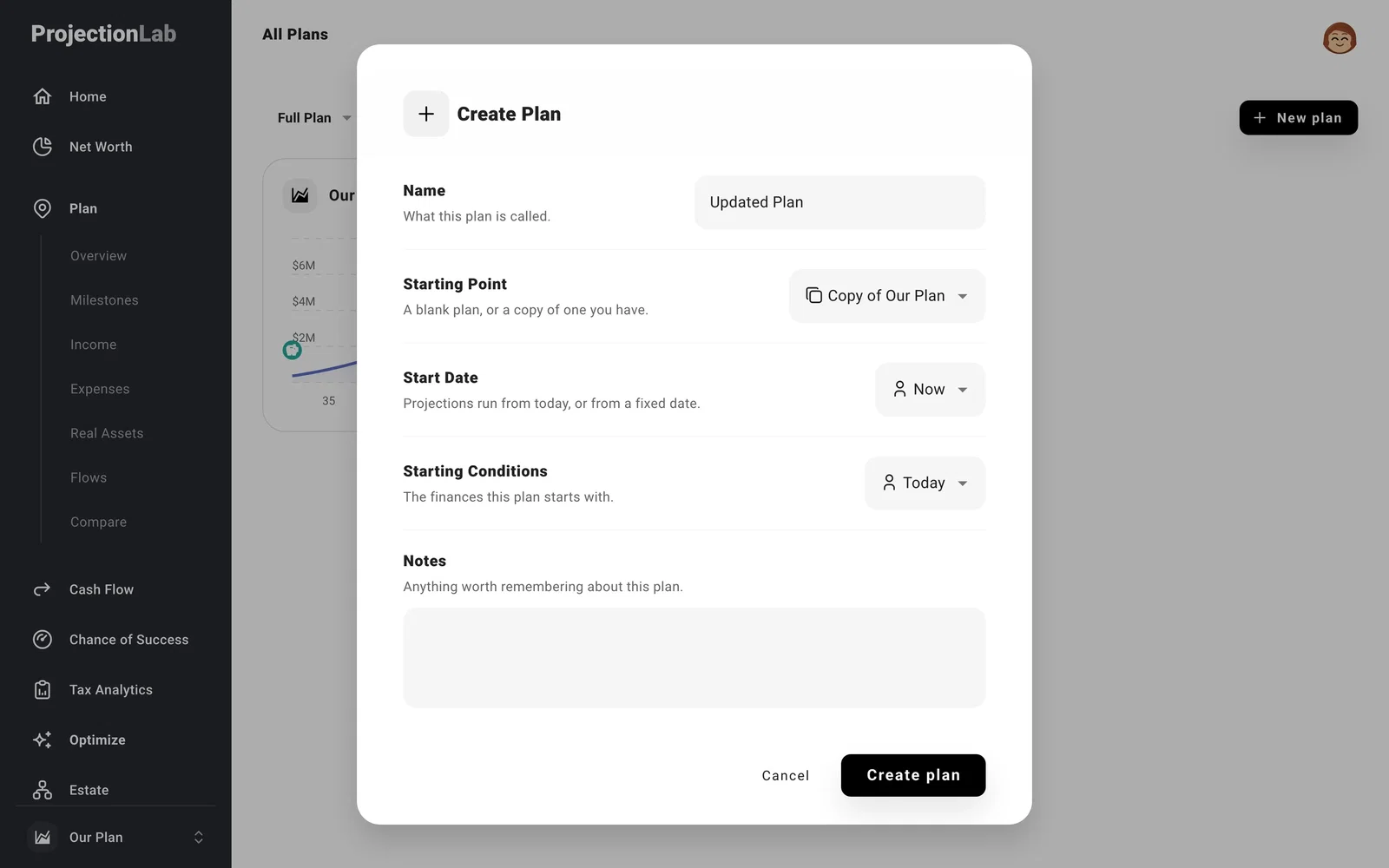
If you previously used only Fixed Date plans, migration creates a new Main Plan named My Plan. To use an existing Fixed Date plan as the starting point for your Main Plan:
- Make sure the account names and owners in My Plan match those in the Fixed Date plan.
- Clone the Fixed Date plan and select Show advanced options. Set Start Date to Now and Starting Conditions to Today.
- Set the new plan as your Main Plan.
3. Your Household
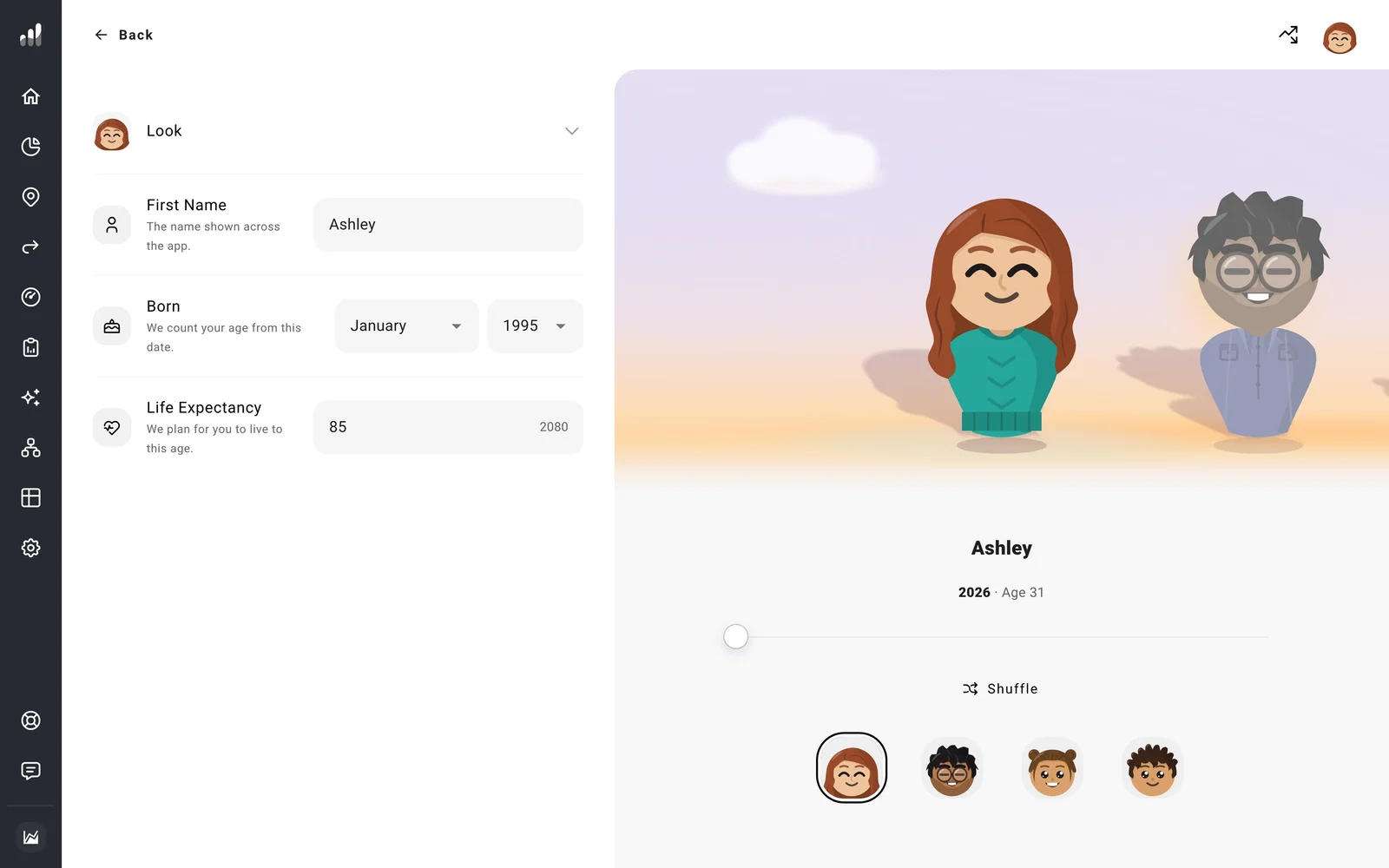
Open Household and review each person’s Life Expectancy. This can affect when the plan ends and the timing of inheritances, survivor benefits, and filing status changes.
Note
You can switch characters to Silhouettes or Icons from the Characters menu on Household.
4. Check accounts that need attention
All accounts now live in Net Worth.
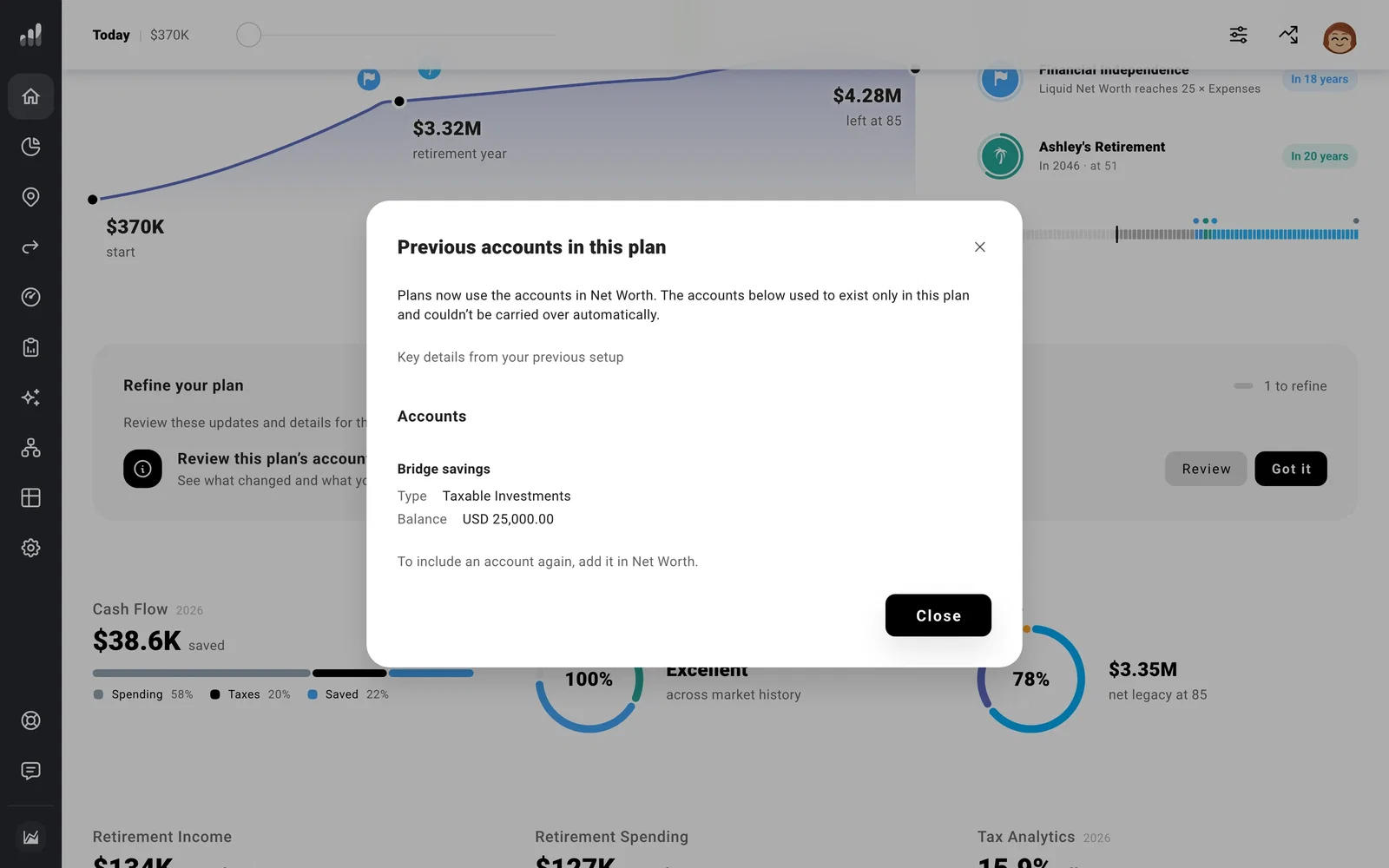
Any account that still existed only inside an individual plan could not be carried over automatically. Any related contributions or transfers were removed too.
On Home, check Refine your plan. If you see Review this plan’s accounts, select Review to see the affected accounts.
For anything you still need:
If the affected plan uses Custom starting conditions, including a Fixed Date plan, select that plan before adding anything in Net Worth.
- Open Net Worth and select Add Account. A zero balance is fine for a future rollover or transfer destination.
- Open Flows and recreate any related contribution or transfer. Review Pay From, Send To, and the conversion source where applicable.
Note
Once you select Got it, the list of affected accounts cannot be reopened.
5. Net Worth and account history
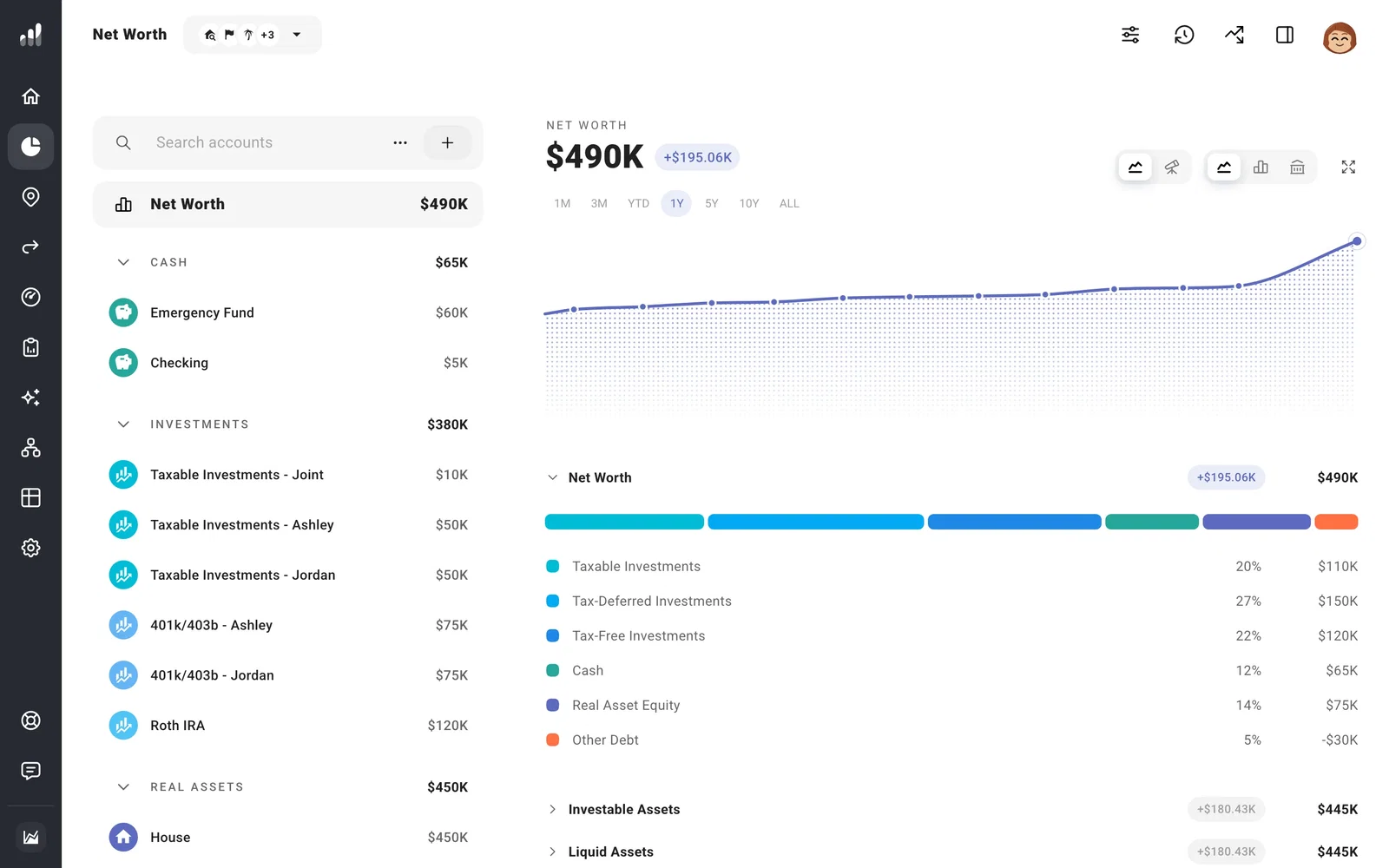
Open Net Worth and make sure your totals, accounts, assets, and debts look right.
Check Owner for accounts associated with a child or other related person. The owner determines whether an account is included in your household’s Net Worth. For education accounts, also confirm the Recipient.
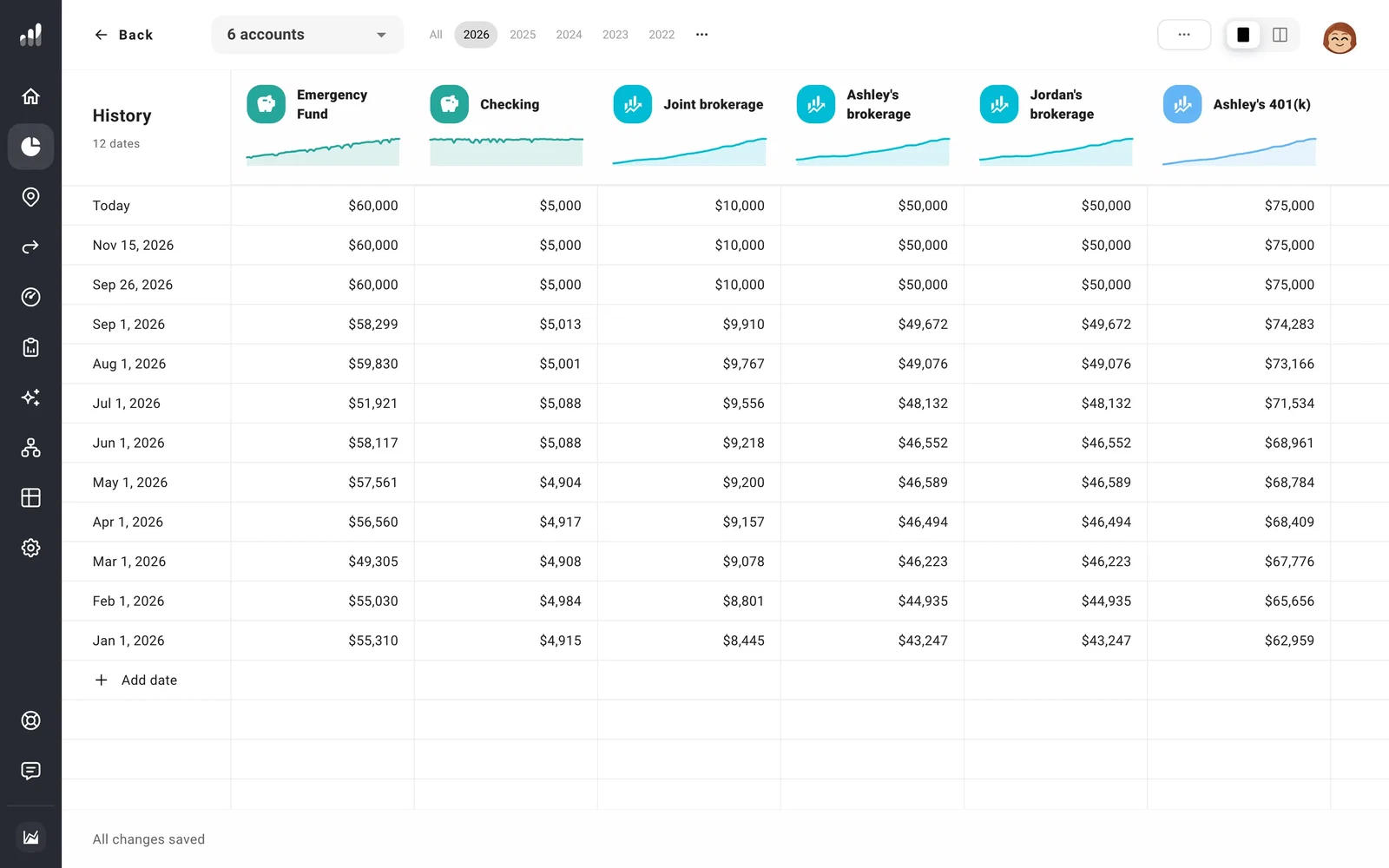
Account history is now tracked separately for each account. The previous version stored progress as category totals, so ProjectionLab used those totals to estimate the history of each account. Select Edit history in Net Worth to review or change those estimates.
Within each account, asset, or debt, Details contains its current information. Plan contains what happens later, such as growth, fees, contributions, and withdrawals.
If you use rental depreciation or an offset account, review Initial Building Value on the property and Offset Accounts on the loan under Settings.
6. Liquidity and withdrawals
If you customized when an account can be used, open it in Net Worth and select Settings.
Review Liquid, Qualified Age, Early Withdrawal Penalties, and Penalty Rate where shown. These settings now come from Net Worth and apply across plans by default.
If you previously used different Qualified Age or penalty settings in different plans, select each plan, open the account’s Settings, and use Override for this plan beside the field.
Within the account, open Plan, then Withdrawals. Confirm whether it should be Always, When Liquid, or Never.
7. Tax workarounds and integrations
If you manually modeled the Child Tax Credit, Credit for Other Dependents, Deductible Self-Employment Tax, or QBI Deduction, review those workarounds. These are now calculated automatically for US plans, so a manual adjustment may count the same item twice.
SEP IRA, Solo 401k, and Roth Solo 401k now have dedicated account types and contribution Flows. If you previously modeled one using a workaround, review whether you want to replace it.
Plugins and integrations may need to be updated for this release. Some may not be ready yet, and their developers may need time to update them.
8. Explore the update
With the migration checks out of the way, use ProjectionLab as you normally would and explore what’s new.
As you explore, use Feedback in the sidebar or join Discord or Reddit to tell us what you find.
If you need help with your account or anything that needs a reply, contact support.
