Plan education costs with a 529 Plan
A 529 plan is a tax-advantaged account for education savings. Will yours cover the college costs ahead? In a US plan, ProjectionLab can show what you’ve saved, what you’ll add, and what the 529 pays when college begins.
Add your 529
If you’re planning for a child, add them to Household first. You can then name them as the 529 recipient and use their age or a milestone to time college costs.
- Go to Net Worth and select + Add account.
- Choose 529 Plan.
- Name the account and choose its Owner and Recipient.
- Enter the account’s current Balance.
- Replace Cost Basis with the total contributed so far, then select Add.
Important
ProjectionLab sets Cost Basis to 50% of Balance by default. This matters for non-qualified withdrawals, where earnings can be taxed and penalized.
Plan future contributions
To keep saving until college begins:
- Open Plan > Flows.
- Under Fund with Income, select Add to Fund with Income.
- Choose Education Savings, then the 529 you added.
- Under Goal, enter the amount you plan to contribute and how often.
- Under Time Range, choose when contributions should stop, then select Add.
We recommend starting with Fund with Income: it contributes while surplus income is available. If your contribution is one you intend to keep even when cash is tight, choose Always Fund, which can draw from other accounts.
Tip
Flow order matters. If another flow above your 529 uses all the money that’s left, move the 529 higher when you want it funded first.
Add the education cost
Next, add the college cost you want the 529 to cover. By default, ProjectionLab treats Amount as Today’s Currency and matches inflation. You can change either setting to fit your estimate.
ProjectionLab fills in a Yearly cost, age-based timing, and the child you selected under For. Review these defaults and change anything that doesn’t fit your plan.
- From Home, open Household and select the child.
- Under Costs, add a cost for the child and choose College.
- Enter your estimate for a year of college under Amount.
- Check Time Range and adjust the ages or Through/Until choice if needed. Select Done if you made a change, then Add.
ProjectionLab uses an available 529 with the same Recipient to pay this education cost when Pay From is Automatic. If you have more than one 529 and want to choose which one pays, select Specific Account instead and leave Tax Treatment on Auto.
See how far it goes
Open the 529 on Net Worth and select View forecast. You can see the balance grow while you save and draw down when education costs begin. If the 529 runs out, ProjectionLab uses income and other accounts to cover the remaining education cost according to your plan.
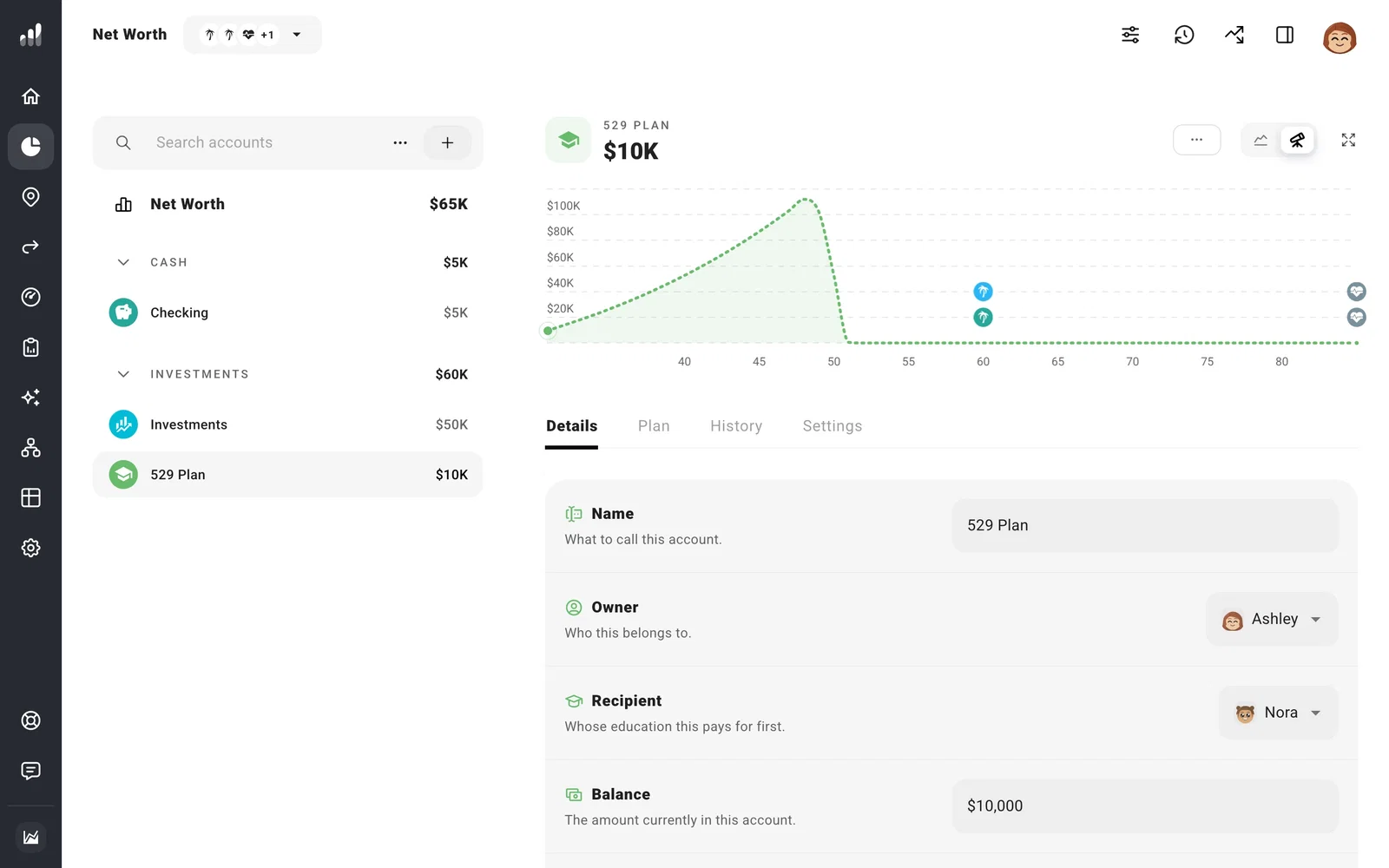
To see how much the 529 might cover, try a different contribution or college cost and check the forecast again.
